Establish the connection in the UI
Delegated invoicing means that one company (the delegate) issues invoices in the name of another company (the supplier), in the supplier's Számlázz.hu account. Before that can happen, a connection must be established between the two companies. There are two ways to do this: on the web interface or programmatically, via API (Establish the connection via API) - this page describes the former, step by step:
- how to send a join request to an existing supplier account from the control panel,
- what happens on acceptance,
- the emails sent by the system,
- and how to disconnect.
For the roles (supplier, delegate) and the business overview, see Third-party invoicing.
The connection is always initiated by the delegate, from the control panel of its own company account - which is why separate, registered Számlázz.hu accounts are needed on both the supplier and the delegate side. What actually joins the supplier's account is a user (login ID) of the delegate, and later that user issues the invoices in the supplier's account.
How the connection is established
Joining an existing supplier account
If the supplier already has a Számlázz.hu account and you want to invoice in it as a delegate, you (the delegate) establish the connection from your own company account, in the following steps.
1. Create a dedicated login ID (recommended)
It is best to create a separate user that will serve the delegated connection only. Do this in the delegate's own account, with the "Meghívót küldök" (Send invitation) button in the "Fiók hozzáférések" (Account access) box of the control panel: enter the name, email address and role, then send the invitation. The invitee activates the access via the link received by email and sets a password (the invitation is valid for 14 days). This will be the ID you later invoice with in the supplier's account, so pick a descriptive name (e.g. "Example Ltd - delegated invoicing"). Detailed guides in the knowledge base (Hungarian): Managing users in the Számlázz.hu account, User roles and permissions.
2. Send the join request
Log in with the dedicated user to the delegate's own company account, and on the control panel click the "Csatlakozni szeretnék egy céghez" (I want to join a company) button. Find the supplier by company name or tax number, tick the "Megbízott számlakibocsátás" (Delegated invoicing) checkbox, then click "Kérést küldök" (Send request). When you tick the checkbox, the system asks for confirmation: as a delegate you will only see the invoices you issued yourself, and the issuing costs are charged to the delegate company.
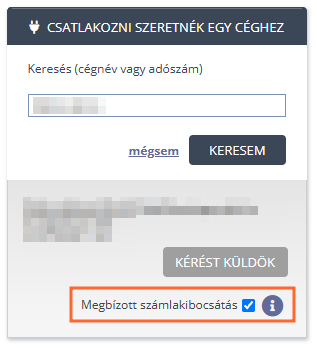
The search expects an exact match: enter either the supplier's full tax number or its full company name. For the company name, letter case, accents and punctuation do not matter (e.g. "example ltd" finds "Example Ltd."), but partial company names return no results.
3. Supplier approval
The supplier's account owner is notified about the request by email and decides on their own control panel: accept or decline. After acceptance you, as the delegate, also receive an email confirmation, and the dedicated user can log in to the supplier's account and invoice.
After acceptance the requesting user still has access to the delegate's own account, so from that point it can access at least two accounts: the delegate's own and the supplier's (with several suppliers, all of them). On the web UI this is not a problem: after login you switch accounts and invoice in the supplier's account. The Számla Agent username + password login, however, only works with a user that has access to exactly one account; with a multi-account user the call fails with error 164.
If you established the connection in the UI but want to invoice via Agent (too), make the dedicated user single-account: after acceptance, have the account owner of the delegate's own account remove the user's access from the delegate account (Control panel / Account access), or the user can leave the account itself in its user settings. The steps are described in the knowledge base (Hungarian): Removing a user's access from an invoicing account. The user then only has access to the supplier's account, and Agent calls work. With several suppliers, use a separate dedicated user per supplier.
The "Csatlakozni szeretnék egy céghez" (I want to join a company) button is only available on the control panel of the delegate's own company account. If you are currently working in the supplier's account (logged in as a delegate), you cannot send a new join request from there - switch back to the delegate's own account first.
What happens on acceptance?
When the supplier accepts a delegated join request:
- The dedicated user gets the "delegated invoice issuer" role in the supplier's account (with invoicing permissions), and only sees the documents it issued itself; the supplier still sees all documents in their own account.
- Delegated join requests can be accepted on any plan, including #free supplier accounts.
- If the delegate has no invoice book yet in the supplier's account, the system generates a prefix automatically.
Emails sent by the system
| Event | Recipient |
|---|---|
| Delegated join request sent | Supplier's account owner |
| Request accepted | Delegate (requesting user) |
| Prefix conflict at acceptance | Delegate |
| Connection terminated | Delegate |
| Monthly summary of delegated activity | Supplier |
The join request email
The supplier's account owner (or, if the account has no owner yet, the pending account-owner invitee) receives the email below. The subject is: "[requesting user's name] szeretne hozzáférni az Ön Számlázz.hu-s fiókjához" ("[requesting user's name] would like to access your Számlázz.hu account"). The email is sent in Hungarian; translated content:
Dear [supplier's account owner]!
[requesting user's name] ([delegate company name]) would like to access the invoicing system of [supplier company name] as a delegated invoice issuer.
With delegated invoicing access, [requesting user's name] will only see the invoices created by themselves, and the system usage costs are also charged to them ([delegate company name]).
If you grant the access, [requesting user's name] will immediately be able to issue invoices from your invoicing account.
Please log in to Számlázz.hu, where you can accept or decline the request on the control panel.
Important! Before granting access, always verify the requester's name and email address. Only accept requests initiated from a known address, sent by a trusted person. If needed, contact the person who sent the access request!
Best regards, Számlázz.hu
Before first live invoicing, agree on a separate invoice book / invoice prefix with the supplier. A custom prefix cannot be set in the UI: it can be provided in the API join request (<cegszamlaszamelotag>), or by sending a new prefix in the first Agent invoice XML; on the pure UI path the system-generated prefix starting with MB is used. Details: Invoice prefix handling.
Disconnecting
The supplier can end the delegated relationship at any time on their control panel: they remove the delegate's dedicated user from their account. The delegate is notified by email, and from that point the user has no access to the supplier's account, so it can no longer invoice there.
The invoice books (prefixes) tied to the delegate, and the invoices issued in them, stay in the supplier's account. When the last delegated user of the delegate company is removed from the supplier's account, these invoice books are released and behave from then on as if the supplier had created them itself: the supplier can even continue invoicing in them with the numbering already started. A prefix that already contains invoices cannot be tied to another delegate later.
How users and accounts relate
The diagram below shows how the delegate company's own account, the users used for joining, and the supplier accounts relate to each other. The users are created by the delegate company via invitations in its own account, and each dedicated user belongs to one specific supplier: it invoices in that supplier's account. This way even 99 suppliers can be served, with a separate user per supplier. A shared user can work in several supplier accounts, but this is not recommended: it is harder to see which user serves which supplier connection, revoking one access affects several connections, and a multi-account user cannot be used for Számla Agent login.